
Download Process Hacker – Free for Windows
Monitor system resources, debug running processes, and detect malware with the most advanced open-source task manager available for Windows.
What Is Process Hacker?
A free, open-source system monitor that gives you complete visibility into what your Windows PC is actually doing behind the scenes.
More Than a Task Manager
Process Hacker is a system monitoring tool for Windows that picks up where Task Manager leaves off. Originally created by developer wj32 and maintained by an active open-source community, it shows you every running process, service, network connection, and kernel object on your machine — with a level of detail that the built-in Windows tools simply do not provide.
If you have ever stared at Task Manager wondering which svchost.exe instance is eating your CPU, Process Hacker answers that question in seconds. It displays a hierarchical process tree that maps parent-child relationships, so you can trace exactly how a process was started and by whom. Color-coded rows make it easy to distinguish system processes (green), elevated processes (red), and standard user processes (blue) at a glance.
Built for Power Users and IT Professionals
Process Hacker is used daily by system administrators, malware analysts, software developers, and security researchers. Its deep inspection capabilities let you examine threads, handles, loaded DLLs, memory regions, environment variables, and security tokens for any running process. For malware analysis specifically, you can identify injected code, scan memory for suspicious patterns, and trace network connections back to the process that opened them.
The tool also includes full service and driver management, real-time CPU/memory/disk/network graphs with per-core breakdowns, and over a dozen methods to terminate stubborn processes that other tools cannot touch. All of this ships in a portable executable under 4 MB — no installation required if you prefer it that way.
Open Source and Completely Free
Released under the GPL v3 license, Process Hacker is free to download, use, and modify. There are no premium tiers, no feature locks, no ads. The full source code is available on GitHub, and a plugin system allows the community to extend its functionality. The project has been rebranded as System Informer by the same development team, but version 2.39 remains widely used and actively downloaded by users who prefer the original interface.
Ready to see what is running on your system? Download Process Hacker 2.39 or read the Getting Started guide first.
Key Features
Process Hacker gives you full visibility into what your Windows system is doing right now – from individual threads to network traffic, all in a single lightweight tool.
Hierarchical Process Tree
View every running process in a parent-child tree layout that shows exactly how processes spawned. Click any process to see its full command line, start time, and which user account launched it. This alone makes tracking down rogue processes far easier than scrolling through a flat list.
Deep Process Inspection
Double-click any process to inspect its threads, loaded DLLs, open handles, memory maps, environment variables, and security tokens. Each tab gives you granular data that Windows Task Manager simply does not expose – the kind of detail you typically need a debugger to access.
Real-Time Performance Graphs
Monitor CPU usage per core, physical and virtual memory consumption, disk I/O rates, and network throughput through live-updating graphs. The System Information window gives you a dashboard-level overview of your entire machine without needing separate monitoring tools.
Malware Detection & Analysis
Spot suspicious activity by identifying processes with injected code, hidden modules, or unusual memory patterns. Process Hacker highlights unsigned DLLs, packed executables, and processes that try to mask their identity – tools that malware analysts and incident responders rely on daily.
Stubborn Process Termination
Kill processes that refuse to close using over a dozen termination methods, including kernel-level techniques. When a frozen application or persistent background process ignores the standard “End Task” button, Process Hacker can still take it down on 32-bit systems.
Service & Driver Management
Start, stop, pause, or restart any Windows service directly. You can also change service start types (automatic, manual, disabled), view service dependencies, and manage kernel-mode drivers – all from the Services tab without opening the Services MMC snap-in.
Network Connection Monitor
See every active TCP and UDP connection on your system along with the process that owns it, the local and remote IP addresses, port numbers, and connection state. Quickly identify which application is consuming bandwidth or connecting to an unexpected remote server.
Handle & Object Viewer
Find which process is locking a file, holding a registry key, or owning a mutex. The “Find Handles or DLLs” search lets you type a file path and instantly see every process that has a handle to it – solving the classic “file is in use” problem in seconds.
Color-Coded Process Display
Processes are automatically color-coded based on their type and privilege level. System processes, elevated (admin) processes, .NET applications, packed images, and services each get a distinct background color. You can customize every color through the Options menu to match your workflow.
Portable & Lightweight
Run Process Hacker from a USB drive or any folder without installing anything. The portable ZIP package weighs just 3.5 MB and leaves no traces in your registry. For technicians who move between machines, this means you always have a full-featured process manager at hand.
Ready to see it in action? Download Process Hacker 2.39 and explore these features yourself.
System Requirements
Process Hacker runs on nearly any Windows machine from the last decade. Here are the minimum and recommended specs for the best experience.
| Component | Minimum | Recommended |
|---|---|---|
| Operating System | Windows 7 SP1 (32-bit or 64-bit) | Windows 10 version 21H2 or Windows 11 |
| Processor (CPU) | 1 GHz single-core (x86 or x64) | Dual-core 2 GHz or faster |
| RAM | 512 MB | 2 GB or more |
| Disk Space | 50 MB (installer) / 35 MB (portable) | 100 MB for logs and plugin data |
| Display | 1024 × 768 resolution | 1920 × 1080 or higher |
| Permissions | Standard user (limited features) | Administrator (full kernel-level access) |
| Runtime | .NET Framework 4.0 (bundled on Win 8+) | .NET Framework 4.5 or later |
Portable option available. Process Hacker ships as both a standard installer (5.2 MB) and a portable ZIP (3.5 MB). The portable version needs no installation and can run directly from a USB drive.
Admin access matters. Running without administrator privileges still works for basic process viewing, but features like kernel-level handles, service management, and protected-process termination require elevated permissions.
Your system likely meets these requirements already. Download Process Hacker 2.39 and get started in under a minute.
Download Process Hacker 2.39
Get the latest stable release of Process Hacker for Windows. Choose the installer for a standard setup, or grab the portable version to run it from any folder or USB drive.
Process Hacker has been rebranded as System Informer by the same development team. Version 2.39 above is the final stable release under the Process Hacker name, and it remains the most widely used version. Some antivirus tools may flag the installer as a false positive due to its low-level system access capabilities — this is normal for process management software.
Screenshots
See Process Hacker in action – from the main process tree to network monitoring and deep process inspection.
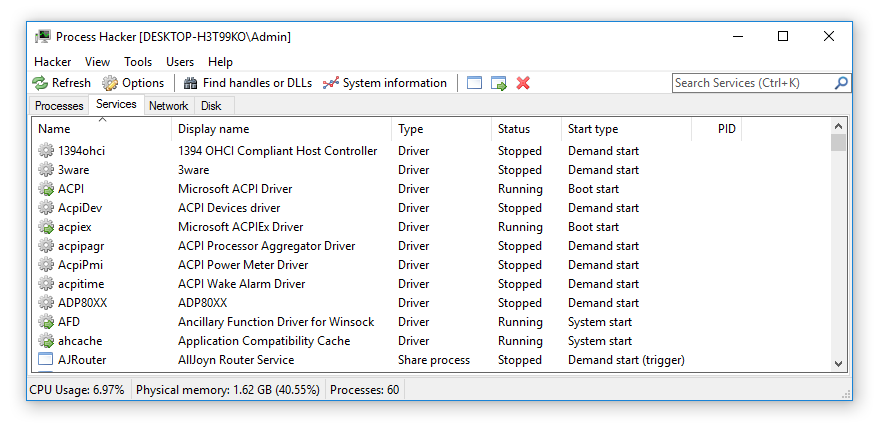
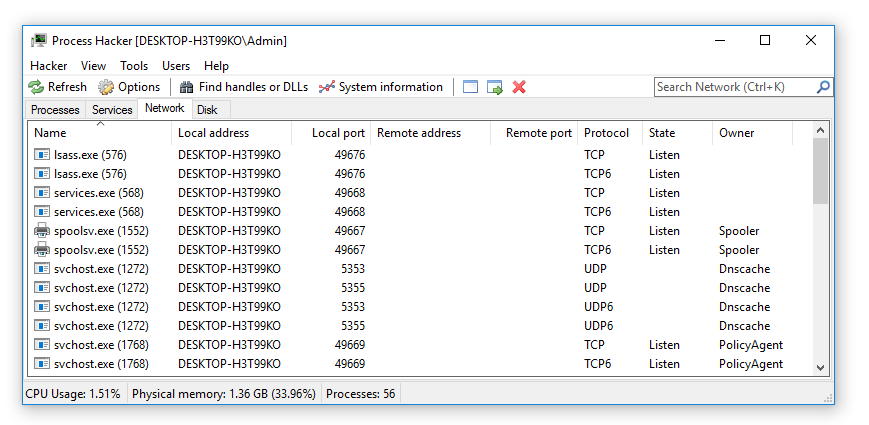
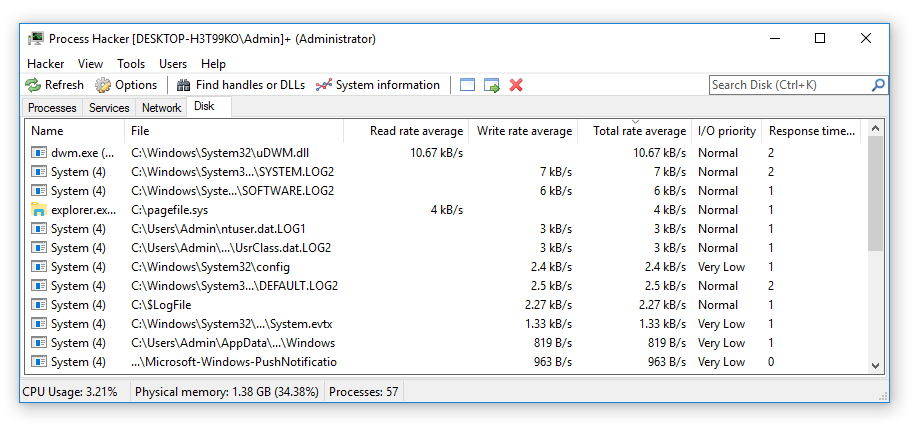
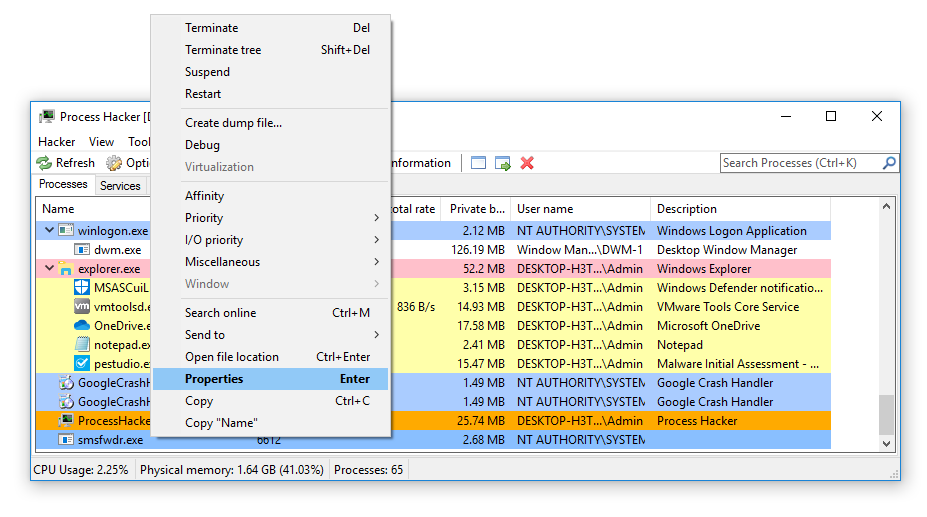
Want to try it yourself? Download Process Hacker and explore your system.
Getting Started with Process Hacker
From download to your first process inspection in under five minutes. Here is everything you need to know.
Downloading Process Hacker
Head to our download section above to grab Process Hacker 2.39.124, the latest stable release. The full installer is about 5.2 MB, so even on a slow connection you will have it in under a minute.
Which version should you pick?
You have two options: the installer (.exe) and the portable ZIP. The installer weighs around 5.2 MB and sets up Process Hacker in C:\Program Files\Process Hacker 2\ with Start Menu shortcuts, optional Task Manager replacement, and automatic startup configuration. This is what most people should grab.
The portable version (~3.5 MB ZIP) needs no installation at all. Extract it to any folder, or even a USB stick, and run ProcessHacker.exe directly. Great if you troubleshoot other people’s computers or want to keep a copy on a flash drive. No registry changes, nothing to uninstall later.
32-bit or 64-bit?
If you run Windows 10 or 11, pick the 64-bit (x64) build. It handles larger address spaces and can inspect 64-bit processes correctly. The 32-bit build is only needed for legacy Windows 7 machines running a 32-bit OS. Not sure which you have? Press Win+Pause and check “System type” in the About panel.
Pro tip: Download both the installer and the portable ZIP. Install the main copy on your PC, and keep the portable version on a USB drive for diagnosing other machines.
Installation Walkthrough
Run processhacker-2.39-setup.exe and follow the wizard. It takes about 30 seconds from start to finish.
- Welcome screen — Click Next.
- License Agreement — Process Hacker is released under the GPL v3 open-source license. Click I Agree to continue.
- Installation directory — The default path is
C:\Program Files\Process Hacker 2\. Leave this as-is unless you have a specific reason to change it. - Select Components — All boxes are checked by default: the main program, plugins, and translations. Keep everything checked. The plugins add features like hardware monitoring, toolbar extensions, and extended notifications.
- Start Menu and shortcuts — Choose whether to create a Start Menu group and a desktop shortcut. Up to you, though a desktop shortcut makes quick access easier.
- Additional Tasks — This is the important screen. Three options appear:
- “Run Process Hacker at system startup” — Leave unchecked unless you want it running every time Windows boots.
- “Replace Task Manager” — Tick this if you want Ctrl+Shift+Esc and the taskbar right-click “Task Manager” option to open Process Hacker instead. You can change this later from Hacker > Options > Advanced.
- “Run as administrator” — Recommended. Tick this box so Process Hacker always launches with full privileges, giving you visibility into all system processes.
- Install — Click Install and wait a few seconds for files to copy.
- Finish — Leave “Launch Process Hacker” checked and click Finish.
Windows SmartScreen warning: On Windows 10/11 you may see a blue popup saying “Windows protected your PC.” Click More info, then Run anyway. This happens because Process Hacker is an open-source tool without a paid Microsoft code-signing certificate. It is safe.
Antivirus false positives
Some antivirus tools (Windows Defender, Malwarebytes, Norton) flag Process Hacker as “RiskWare.ProcessHacker” or a similar label. This is not a virus detection. Security vendors flag it because Process Hacker includes a kernel driver (KProcessHacker.sys) that can bypass process protections, and that capability can be misused. If you downloaded from the official source on this page, you can safely whitelist it in your antivirus settings.
Silent install (command line)
For IT admins deploying across multiple machines, Process Hacker supports a silent install:
processhacker-2.39-setup.exe /VERYSILENT /SUPPRESSMSGBOXES /NORESTARTThis runs the installer with no user prompts and applies default settings.
Initial Setup & Configuration
Process Hacker works out of the box, but a few settings changes make the experience much better. Open the settings dialog from Hacker > Options in the menu bar.
General tab
- Update interval — Defaults to 1000 ms (1 second). Leave it at 1000 ms for normal use. Drop it to 500 ms if you need faster refresh when hunting a short-lived process.
- Scroll to new processes — Enable this. When a new process spawns, the process tree automatically scrolls to show it, highlighted in green.
Highlighting tab
This controls the color-coded rows in the process tree. The defaults are fine, but one change helps a lot:
- Highlight duration — Change from 1000 ms (default) to 3000 ms. New processes flash green and dying processes flash red. At 1 second, you barely notice them. At 3 seconds, you have time to read the process name before the color fades. This is especially useful when tracking malware droppers or short-lived child processes.
The color legend on this screen shows you what each row color means: green for new, red for removed, teal for services, orange for elevated, purple for packed/suspicious, gray for suspended, light blue for .NET processes.
Advanced tab
- Replace Task Manager — If you skipped this during install, you can enable it here. Tick the checkbox and Process Hacker will intercept all Task Manager calls system-wide.
- KProcessHacker (kernel driver) — Enabled by default. This gives Process Hacker kernel-level access to view protected processes (like antivirus software) that user-mode tools cannot touch.
Customize your columns
Right-click any column header in the Processes tab and select columns to add or remove. Three worth adding right away:
- Command Line — Shows the full launch arguments of each process. Reveals hidden flags, file paths, and configuration parameters.
- Integrity Level — Displays whether a process runs at Low, Medium, High, or System integrity. Critical for security analysis.
- Verified Signer — Shows the digital signature status. Unsigned processes in unexpected locations deserve a closer look.
Pro tip: If you migrated from Sysinternals Process Explorer, you will feel right at home. Process Hacker has a similar tree layout but adds network monitoring, disk I/O, a memory editor, and DLL injection tools that Process Explorer lacks.
Your First Process Inspection
Time to actually use it. Open Process Hacker (make sure “Administrator” appears in the title bar) and try these core workflows.
Navigate the process tree
The Processes tab shows every running process in a tree structure. Parent processes sit at the top level, with their child processes indented below. For example, explorer.exe (Windows Explorer) is the parent of any program you launch from the desktop or taskbar. Click any column header to sort. The search box in the toolbar filters the list instantly as you type.
Inspect a suspicious process
Say you spot an unfamiliar process burning CPU. Double-click it to open its Properties dialog. Here is what each tab tells you:
- General — Full file path, command line arguments, parent process, start time, and per-process CPU/memory graphs. Check the file path first. A legitimate
svchost.exelives inC:\Windows\System32\. If it shows a different path, investigate further. - Image — Digital signature verification. Click Verify to check whether the executable is signed by a trusted publisher. Unsigned binaries or invalid signatures are a red flag.
- Modules — All DLLs loaded by the process. Look for DLLs from unusual directories or DLLs with names that mimic system files.
- Handles — File locks, registry keys, and mutexes held by the process. If a file is locked and you cannot delete it, find the handle here and right-click > Close to release it.
- Network — Active connections from this specific process. Shows local/remote IPs and ports.
Find who is locking a file
Cannot delete or move a file because something has it open? Press Ctrl+F or go to Hacker > Find handles or DLLs. Type the filename (even a partial name works). Click Find. The results show which process holds the lock. Right-click the result and select Go to owning process to jump straight to it in the tree.
Kill a stuck process
Select the process and press Delete for a normal termination. If the process ignores that (some malware and protected processes do), use Shift+Delete for a forced kill. For an entire process tree (the process plus all its children), right-click and select Terminate tree.
Essential keyboard shortcuts
| Shortcut | Action |
|---|---|
| Ctrl+I | Open System Information (CPU, memory, disk, network graphs) |
| Ctrl+F | Find handles or DLLs (file lock finder) |
| F5 | Refresh process list |
| Delete | Terminate selected process |
| Shift+Delete | Force-kill selected process |
| Enter | Open Properties for selected process |
| F2 | Add a custom label/note to a process |
Be careful with handles: Closing a file handle from the Handles tab forces the owning application to lose access to that file immediately. This can crash the application or cause data corruption. Only close handles as a last resort when a file is stuck and you understand the risk.
Tips, Tricks & Best Practices
Performance tuning for games
Right-click your game process, go to Set priority > High, and then Set I/O priority > High. This gives the game more CPU time and disk bandwidth than background processes. On multi-core CPUs, you can also right-click > Set affinity and pin the game to specific cores while leaving other cores free for streaming software or voice chat. These settings reset when the process closes, so you need to re-apply each session.
Power-user features most people miss
- System Information window (Ctrl+I) — Real-time graphs for CPU (per-core), memory, disk I/O, and network. Double-click a spike on any graph and Process Hacker jumps to the process that caused it. Even works for processes that already terminated.
- Process labels (F2) — Add text notes to any process. When you see a dozen
svchost.exeinstances, label them (“Audio service”, “Windows Update”, “DNS client”) so you remember which is which. - Window transparency — Go to View > Opacity and set the window to 70-80%. Now you can watch processes while seeing the application underneath.
- Memory string scanning — Open a process Properties > Memory tab, right-click a region, and select Search > Strings. This scans memory for readable text, useful for finding URLs, config values, or other artifacts in a running process.
- Export process list — Go to Hacker > Save to export the full process list as a text file. Handy for documentation or sending to IT support when diagnosing issues.
Common mistakes to avoid
- Do not set any process to Real-time CPU priority. It starves the OS of CPU time and can cause freezes. High priority is the safe ceiling.
- Do not unload DLLs from the Modules tab unless you know exactly what the DLL does. Removing a core DLL crashes the process immediately.
- If you run games with kernel-level anti-cheat (Easy Anti-Cheat, BattlEye), close Process Hacker before launching. These anti-cheat systems detect the KProcessHacker driver and will refuse to start the game.
Where to find help
The official project page is hosted on SourceForge. For community discussion, search Reddit at r/sysadmin or r/techsupport where Process Hacker comes up frequently. The development team has also started work on System Informer, the next-generation rebrand of Process Hacker with updated features and a refreshed interface.
Pro tip: Process Hacker 2.39 does not auto-update. Bookmark the download section on this page and check back periodically for updates, or follow the System Informer project for the latest builds.
Frequently Asked Questions
Answers to the most common questions about downloading, installing, and using Process Hacker on Windows.
Is Process Hacker safe to download and use?
Yes, Process Hacker is safe. It is a legitimate, open-source tool published under the GNU GPL v3 license, with its full source code available on GitHub for anyone to inspect. The project has been publicly maintained since 2008 and is used by security professionals, system administrators, and malware analysts worldwide.
Several antivirus programs flag Process Hacker as “RiskTool” or “HackTool” because it accesses low-level system functions that malware also uses – things like reading process memory, terminating protected processes, and injecting DLLs. Kaspersky, for example, labels it “Not-a-virus:HEUR:RiskTool.Win32.ProcHack.gen” – the “Not-a-virus” prefix is the important part. These are false positives, and the detections reflect what the tool can do, not any malicious intent. Microsoft’s own Process Explorer uses similar techniques.
- Download only from official sources: the SourceForge project page or the GitHub releases page
- Verify the SHA-256 checksum listed on the download page against your downloaded file
- If your antivirus blocks it, add an exclusion for the Process Hacker installation folder
- The installer (v2.39.124) is digitally signed by the developer
Pro tip: If you want extra assurance, download the source code from GitHub and compile it yourself. The build instructions are straightforward if you have Visual Studio installed.
For download links and checksums, visit our download section.
Is Process Hacker a virus or malware?
No, Process Hacker is not a virus or malware. It is a well-known open-source system monitoring tool that has been publicly developed since 2008. The confusion comes from antivirus vendors categorizing it as a “potentially unwanted program” or “risk tool” because of its powerful system-level capabilities.
Here is why antivirus software flags it: Process Hacker can terminate almost any process (including protected ones), read and write process memory, inject DLLs into running processes, and load kernel drivers. These are the same techniques that actual malware uses, so heuristic scanning engines flag anything with those capabilities. On VirusTotal, you will typically see 20-35 detections out of 70+ engines, but look closely at the detection names. Most say “RiskTool”, “HackTool”, or “Not-a-virus” – none call it an actual trojan or worm. Reddit threads on r/antivirus and r/windows consistently confirm it is safe when downloaded from official sources.
- Check the detection name – “RiskTool” and “Not-a-virus” are not malware classifications
- Verify your download source is official (SourceForge or GitHub, not random download sites)
- Compare the file hash against the official SHA-256 published on the project page
- If you are still unsure, run it in a virtual machine first to see its behavior
Pro tip: Some anti-cheat systems in games (like Fortnite’s EasyAntiCheat and Escape from Tarkov’s BattlEye) will detect Process Hacker and either block the game from launching or issue a ban. Close Process Hacker completely before playing any game with anti-cheat protection.
Learn more about what Process Hacker actually does in our features section.
Where is the official safe download for Process Hacker?
The official Process Hacker download is hosted on SourceForge at processhacker.sourceforge.io. The source code and nightly builds are also available on the GitHub repository under the processhacker organization. These are the only two official distribution channels maintained by the development team.
The stable release is version 2.39.124. The installer is about 5.2 MB and the portable ZIP is roughly 3.5 MB. Both the 32-bit and 64-bit versions are included in a single download package. Be cautious with third-party download sites – some repackage the installer with bundled adware or modify the executable. A common mistake is downloading from sites that add toolbar installers or redirect you through ad-heavy download wrappers.
- Official SourceForge page: processhacker.sourceforge.io
- Official GitHub releases: github.com/processhacker/processhacker
- Avoid sites like Softonic, FileHippo, or CNET that may bundle additional software
- Always check that the file hash matches the SHA-256 listed on the official page
Pro tip: If the SourceForge page redirects you to System Informer (the successor project), that is expected. You can still find Process Hacker 2.39 in the SourceForge file archive under the “processhacker2” project files.
Get the direct download link from our download section on this page.
Does Process Hacker work on Windows 11?
Yes, Process Hacker 2.39 runs on Windows 11 without major issues. It supports Windows 7, 8, 8.1, 10, and 11 in both 32-bit and 64-bit editions. Most core features – process monitoring, service management, network connections, memory inspection – work correctly on Windows 11 builds up to 24H2.
That said, Process Hacker 2.39 was last updated before Windows 11 existed, so some newer system calls and security features may not be fully supported. The kernel driver (KProcessHacker) can occasionally have compatibility issues with newer Windows 11 builds, particularly around features like Virtualization-Based Security (VBS) and Hypervisor-Protected Code Integrity (HVCI). If you run into driver loading failures, try the portable version without the driver – you will lose some advanced termination methods but the rest works fine.
- Run as administrator for full functionality on Windows 11
- If Windows SmartScreen blocks it, click “More info” then “Run anyway”
- The kernel driver may not load on systems with Secure Boot and HVCI enabled
- For full Windows 11 support with the latest patches, consider System Informer (the actively maintained successor)
Pro tip: If you need the kernel driver on Windows 11 with Secure Boot, System Informer (version 3.2) has an updated driver that passes modern signing requirements. Process Hacker 2.39’s driver predates these requirements.
Check the full compatibility details in our system requirements section.
What are the minimum system requirements for Process Hacker?
Process Hacker has very modest system requirements. It runs on any Windows PC from Windows 7 onward with a 1 GHz processor, 512 MB of RAM, and about 50 MB of free disk space. There is no GPU requirement since it is purely a system monitoring tool without 3D rendering.
In practice, Process Hacker is extremely lightweight. It uses between 15-40 MB of RAM during normal operation, depending on how many processes your system is running. CPU usage sits at under 1% on most systems, spiking only when refreshing process lists or running memory scans. The installer is 5.2 MB and the portable ZIP is 3.5 MB, so even on older machines with limited storage, it fits easily. For a smoother experience, 2 GB of RAM and 100 MB of disk space are recommended – mainly because Windows itself and the processes you are monitoring consume the bulk of system resources.
- OS: Windows 7 SP1 or later (32-bit or 64-bit)
- CPU: 1 GHz or faster (any x86 or x64 processor)
- RAM: 512 MB minimum, 2 GB recommended
- Disk: 50 MB minimum, 100 MB recommended
- Permissions: Administrator privileges required for full functionality
Pro tip: The portable version has no installer overhead and can run directly from a USB flash drive, which makes it ideal for troubleshooting machines where you cannot install software.
See the full specifications table in our system requirements section.
Does Process Hacker support 32-bit operating systems?
Yes, Process Hacker fully supports 32-bit Windows. The download package includes both the 32-bit (x86) and 64-bit (x64) executables, and the installer automatically selects the correct version for your system.
On 32-bit systems, Process Hacker actually has a few extra capabilities. The kernel driver (KProcessHacker) on 32-bit Windows can use additional termination methods that are not available on 64-bit systems due to Kernel Patch Protection (PatchGuard). This means you can terminate even more stubborn processes on a 32-bit machine. The tool works identically on both architectures for all other features – process inspection, network monitoring, service management, and memory editing all function the same way.
- 32-bit executable: ProcessHacker.exe (located in the x86 folder)
- 64-bit executable: ProcessHacker.exe (located in the x64 folder, or the root if using the installer)
- The installer auto-detects your architecture and places the right version
- Portable users should pick the correct folder (x86 or x64) for their system
Pro tip: If you are using the portable version on a 64-bit system but accidentally run the 32-bit executable, Process Hacker will still work but you will not be able to inspect 64-bit processes properly. Always match the executable to your OS architecture.
Download the version that matches your system from our download section.
Is Process Hacker completely free to download and use?
Yes, Process Hacker is 100% free. It is released under the GNU General Public License version 3 (GPLv3), which means you can download, use, modify, and redistribute it at no cost. There is no paid version, no premium tier, no trial period, and no feature gating behind a paywall.
Unlike many “free” tools that monetize through bundled adware, usage tracking, or upselling to a pro version, Process Hacker has none of that. The project has been community-funded and volunteer-maintained since its creation by developer wj32 around 2008. Every feature – process termination, memory editing, DLL injection, network monitoring, service management – is available to every user from day one. The source code is on GitHub, so anyone can verify there is no hidden monetization.
- No ads, no bundled software, no telemetry
- No registration or account required
- No feature limits or usage caps
- Commercial use is permitted under the GPLv3 license
- The successor (System Informer) is also free and open-source under the same license model
Pro tip: If a website asks you to pay for Process Hacker or requires you to complete a survey before downloading, you are on a scam site. The real download is always free from SourceForge or GitHub.
Get the free download from our download section.
Is Process Hacker legal to use?
Yes, Process Hacker is completely legal to download and use. It is a legitimate system administration tool, no different legally from Windows Task Manager or Microsoft’s own Process Explorer. Possessing or using process monitoring software is not illegal in any jurisdiction.
The “Hacker” in the name causes confusion, but it refers to the programming sense of the word – someone who explores and understands systems deeply – not criminal hacking. The tool itself is a system monitor and debugger. Security researchers at companies like Varonis, SANS, and various incident response firms openly recommend and use Process Hacker in their professional workflows. It is taught in cybersecurity courses and used in malware analysis labs at universities.
Where legality gets nuanced is how you use it. Using Process Hacker on your own computer is always legal. Using it on someone else’s computer without authorization could violate computer fraud laws (like the CFAA in the US or the CMA in the UK), but that applies to any system tool, including the built-in Windows command prompt.
- Legal for personal use on your own systems
- Legal for professional IT administration and security work
- Legal for educational and research purposes
- Requires authorization if used on machines you do not own
Pro tip: Some corporate environments and anti-cheat systems block Process Hacker by policy, not by law. Getting flagged by your company’s endpoint detection does not mean you broke any law – it means the tool triggered a security policy. Check with your IT department before running it on a work machine.
Learn more about what Process Hacker does in our overview section.
How do I download and install Process Hacker step by step?
Installing Process Hacker takes about two minutes. Download the installer (5.2 MB) from the official SourceForge page, run the setup wizard, and you are done. Here is the full walkthrough.
The installer is a standard Windows setup executable. It does not bundle any third-party software or browser toolbars, and there are no hidden checkboxes to watch for. If Windows SmartScreen shows a blue warning that says “Windows protected your PC”, click “More info” and then “Run anyway” – this happens because Process Hacker is not published through the Microsoft Store.
- Download ProcessHacker-2.39-setup.exe from our download section or from SourceForge
- Right-click the downloaded file and select “Run as administrator”
- If SmartScreen appears, click “More info” then “Run anyway”
- Accept the license agreement (GPLv3) and click Next
- Choose the installation directory (default is C:\Program Files\Process Hacker 2)
- Select components – keep all checked unless you do not want the desktop shortcut
- Click Install and wait a few seconds for the files to copy
- Check “Launch Process Hacker” and click Finish
Pro tip: During installation, there is an option to install the kernel driver (KProcessHacker). Keep this enabled – it gives you access to advanced process termination methods and deeper system inspection. Without it, some processes cannot be killed.
For the complete setup guide including first-run configuration, see our Getting Started section.
Process Hacker portable vs installer – which should I choose?
The portable version (3.5 MB ZIP) and the installer version (5.2 MB EXE) contain the same program with the same features. The choice depends on how you plan to use it: the installer is better for daily use on your own PC, and the portable version is better for USB drives and troubleshooting other machines.
The installer registers Process Hacker in the Windows Programs list, adds a Start Menu shortcut, optionally creates a desktop icon, and can install the KProcessHacker kernel driver as a system service. This driver loads automatically at boot, which means advanced termination methods are available immediately. The installer also lets you set Process Hacker as the default Task Manager replacement through its Options menu, so pressing Ctrl+Shift+Esc opens Process Hacker instead.
The portable version runs from any folder with no installation. Extract the ZIP, open the x86 or x64 folder (match your system architecture), and run ProcessHacker.exe. No registry entries, no services, no traces left behind. The downside is the kernel driver does not auto-load, so you must manually start it through Options > Advanced each session if you need it.
- Choose installer if: you use Process Hacker daily, want it as Task Manager replacement, need auto-starting kernel driver
- Choose portable if: you troubleshoot multiple machines, want no system modifications, run from USB
- Both versions include 32-bit and 64-bit executables
- Both support plugins placed in the Plugins subfolder
Pro tip: Many IT professionals carry the portable version on a USB drive alongside other Sysinternals tools for quick diagnostics. Create a folder called “Toolkit” on your USB, extract Process Hacker portable there, and you have an instant troubleshooting kit.
Download either version from our download section.
How to fix Process Hacker installation errors on Windows?
Most Process Hacker installation failures fall into three categories: antivirus interference, insufficient permissions, or corrupted downloads. Each has a straightforward fix.
The most common cause is your antivirus quarantining the installer before it can run. Windows Defender, Malwarebytes, Kaspersky, and Norton all may flag the setup file. The second issue is not running the installer as administrator – Process Hacker needs elevated privileges to install its kernel driver and write to Program Files. A corrupted download is less common but happens if your connection dropped mid-transfer, resulting in a partial file that will not execute properly.
- Antivirus blocking: Temporarily disable real-time protection, or add the installer file to your antivirus exclusion list before running it
- Permission denied: Right-click the installer and select “Run as administrator” – do not just double-click it
- SmartScreen block: Click “More info” then “Run anyway” on the blue Windows SmartScreen prompt
- Corrupted download: Delete the file, clear your browser cache, and re-download. Compare the SHA-256 hash with the one published on SourceForge
- Existing installation conflict: Uninstall any previous version of Process Hacker from Control Panel before installing a new copy
If the installer itself works but Process Hacker crashes on first launch, the kernel driver may be incompatible with your Windows version. Go to Options > Advanced and uncheck “Enable KProcessHacker” to run without the driver.
Pro tip: If nothing works with the installer, skip it entirely. Download the portable ZIP version, extract it, and run ProcessHacker.exe directly. Same features, zero installation headaches.
See the full installation walkthrough in our Getting Started guide.
How to fix Process Hacker not opening or crashing on launch?
If Process Hacker fails to open or crashes immediately after launch, the issue is almost always one of three things: antivirus interference, a corrupted settings file, or a kernel driver conflict with your Windows build.
Antivirus software is the number one culprit. Programs like Malwarebytes and Windows Defender can quarantine ProcessHacker.exe or its kernel driver between sessions, so the application worked yesterday but is gone today. Check your antivirus quarantine log first. On Windows 11 with recent updates (particularly builds 22621 and later), the KProcessHacker driver sometimes fails to load due to stricter driver signing enforcement, which can cause Process Hacker to hang at startup if it is waiting for the driver.
- Check your antivirus quarantine and restore ProcessHacker.exe if it was flagged
- Add the entire Process Hacker folder to your antivirus exclusion list
- Delete the settings file at %APPDATA%\Process Hacker 2\settings.xml and relaunch – a corrupted settings file causes crashes
- Run ProcessHacker.exe as administrator explicitly (right-click > Run as administrator)
- If it hangs at startup, try the portable version without the kernel driver
- Check Windows Event Viewer (eventvwr.msc) under Application logs for specific error codes
Pro tip: If Process Hacker worked before a Windows update but stopped, the update likely broke driver compatibility. Switch to System Informer (version 3.2+), which has a driver updated for current Windows 11 builds.
For more troubleshooting steps, check our Getting Started guide.
Why does my antivirus keep deleting Process Hacker?
Your antivirus deletes Process Hacker because the program uses techniques that overlap with what malware does. This is a false positive, not an actual threat detection. The tool reads process memory, terminates protected processes, and can inject DLLs – all legitimate system administration functions that heuristic scanners also associate with malicious software.
On VirusTotal, Process Hacker 2.39 typically triggers 20-35 out of 70+ antivirus engines. Kaspersky labels it “Not-a-virus:HEUR:RiskTool.Win32.ProcHack.gen” – note the explicit “Not-a-virus” prefix. Malwarebytes categorizes it as “RiskWare.ProcessHacker.” Neither is a malware detection; they are advisory classifications saying “this tool has powerful capabilities.” The same pattern applies to other legitimate security tools like Mimikatz, Nirsoft utilities, and even some Sysinternals tools.
- Open your antivirus settings and find the Exclusions or Allowed Items section
- Add the Process Hacker installation folder (default: C:\Program Files\Process Hacker 2\) as a folder exclusion
- Also exclude the specific file path of ProcessHacker.exe
- If using Windows Defender: Settings > Virus & threat protection > Manage settings > Exclusions > Add folder
- If using Malwarebytes: Settings > Allow List > Add > select the Process Hacker folder
Pro tip: Set up the exclusion before installing Process Hacker. If you install first, the antivirus may quarantine files during installation, leaving a broken install that produces confusing errors later.
Learn about Process Hacker’s actual capabilities in our features section.
Process Hacker stopped working after a Windows update – how to fix?
Windows updates occasionally break Process Hacker, usually by tightening driver signature requirements or changing kernel APIs that the KProcessHacker driver depends on. This is more common on Windows 11 where Microsoft frequently updates security policies.
When this happens, Process Hacker itself may still launch, but features that rely on the kernel driver stop working – you will see “Unable to load KProcessHacker” errors or lose the ability to terminate protected processes. In worse cases, the application crashes on startup because it tries to load an incompatible driver. Windows 11 builds 22621+ and the 24H2 update have been particularly problematic for older kernel drivers. The underlying issue is that Process Hacker 2.39 was last updated before these Windows builds existed.
- First, try restarting your PC – sometimes the driver just needs a clean reload after an update
- Open Process Hacker, go to Options > Advanced, and uncheck “Enable KProcessHacker” to run without the kernel driver
- Run system file integrity checks: open Command Prompt as admin and run
DISM /Online /Cleanup-Image /RestoreHealthfollowed bysfc /scannow - Check if Windows Defender re-flagged Process Hacker after the update (updates can reset exclusions)
- If the issue persists, download System Informer (v3.2+) which has an updated driver compatible with current Windows builds
Pro tip: After any major Windows update (like going from 23H2 to 24H2), check your antivirus exclusions. Windows Update has a habit of resetting Defender exclusions, which means previously allowed tools get quarantined again.
For version details and alternative downloads, see our download section.
How do I update Process Hacker to the latest version?
Process Hacker does not have a built-in auto-update feature. To update, you download the latest version manually and install it over your existing copy. The current stable release is version 2.39.124.
Since Process Hacker 2.39 has been the stable release for several years (the development team shifted focus to System Informer), “updating” typically means either reinstalling the same version after a corruption issue, or migrating to System Informer for the most recent improvements. System Informer is the direct continuation of Process Hacker with the same codebase, same developer (wj32 and team under Winsider Seminars & Solutions), and the same GPL license. The latest System Informer release is version 3.2.25011 (May 2025) with full Windows 11 24H2 support.
- Check your current version: open Process Hacker > Help > About
- Download the latest installer from our download section or SourceForge
- Close Process Hacker completely (check system tray for the icon)
- Run the new installer – it will overwrite the previous version
- Your settings in %APPDATA%\Process Hacker 2\settings.xml are preserved
Pro tip: If you want the latest features and security patches, install System Informer alongside Process Hacker instead of replacing it. Both can coexist on the same machine, letting you transition gradually.
Download the latest version from our download section.
What happened to Process Hacker? What is System Informer?
Process Hacker was rebranded to System Informer by the same development team. System Informer is the direct successor – same codebase, same developers, same open-source license. The rename happened to better reflect what the tool actually does (system monitoring) and to reduce the false positive rate caused by the word “Hacker” in the name.
The original developer wj32 and the team at Winsider Seminars & Solutions continue the project under the new name on GitHub (github.com/winsiderss/systeminformer). Process Hacker 2.39 remains available as the last release under the old name, while System Informer has moved to version 3.x with significant improvements: ARM64 processor support, a native dark theme, exploit mitigation displays (showing CFG, CET, and XFG status per process), improved GPU monitoring graphs, high-DPI scaling fixes, and compatibility with the latest Windows 11 builds.
- Process Hacker 2.39 = last stable release under old name (still works, still downloadable)
- System Informer 3.x = actively developed continuation with new features
- The SourceForge URL (processhacker.sourceforge.io) now redirects to systeminformer.sourceforge.io
- Your Process Hacker settings and plugins may need reconfiguration when switching
Pro tip: If you are currently running Process Hacker 2.39 and everything works for your needs, there is no rush to switch. System Informer is the better choice only if you need Windows 11 24H2 driver support, ARM64 compatibility, or the latest security features.
Read about all of Process Hacker’s capabilities in our features section.
Process Hacker vs Process Explorer – which is better?
Process Hacker offers more raw power and flexibility, while Process Explorer is simpler to use and backed by Microsoft. For most users doing basic system troubleshooting, Process Explorer is enough. For security professionals, malware analysts, and power users who need deep system access, Process Hacker is the stronger choice.
Process Explorer (v17.09, December 2025) comes from Microsoft’s Sysinternals suite. It is a single portable EXE with no installation, supports dark mode, shows .NET assembly information, and has strong symbol resolution for debugging. Its interface is cleaner and less overwhelming for beginners. However, it lacks several features Process Hacker provides: there is no network connections tab (you need TCPView separately), no service management, no memory editor, no DLL injection capability, and no plugin system.
Process Hacker 2.39 has a built-in Network tab showing all TCP/UDP connections mapped to processes, a full Services tab for starting, stopping, and modifying services, a memory editor for reading and writing process memory, over a dozen process termination methods (versus Process Explorer’s single kill button), and an extensible plugin architecture. It is also open-source, meaning you can audit exactly what it does.
- Process Explorer wins at: ease of use, Microsoft integration, .NET debugging, single-file portability, no false positives from antivirus
- Process Hacker wins at: network monitoring, service management, process termination methods, memory editing, DLL inspection, plugin support, open-source transparency
- Many professionals keep both installed and use whichever fits the task
Pro tip: You do not have to pick one. Install both. Use Process Explorer for quick process checks and .NET debugging. Switch to Process Hacker when you need to investigate network connections, kill a stubborn process, or analyze suspicious DLLs.
See everything Process Hacker can do in our features section.
Process Hacker vs Windows Task Manager – what is the difference?
Process Hacker shows far more detail than Windows Task Manager and gives you control that Task Manager simply does not offer. Task Manager is designed for casual users; Process Hacker is built for professionals who need to understand exactly what is happening on a system.
Windows Task Manager (even the improved Windows 11 version) shows basic information: process name, CPU percentage, memory usage, disk and network totals. You can end tasks, check startup programs, and view performance graphs. That covers about 5% of what Process Hacker exposes. Process Hacker adds: a hierarchical process tree showing parent-child relationships, per-thread CPU and I/O statistics, loaded DLLs and their paths, open handles (files, registry keys, mutexes), network connections per process with remote IPs and ports, security tokens and privileges, environment variables, memory maps, GDI handle counts, and real-time per-core CPU graphs.
- Process termination: Task Manager has one “End Task” button. Process Hacker has 12+ methods including tree kill, suspend, and forced termination that bypasses protection
- Network: Task Manager shows total bandwidth. Process Hacker shows each connection with remote IP, port, protocol, and the owning process
- Services: Task Manager has a basic services tab. Process Hacker lets you create, delete, modify, start, stop, and change service types
- Search: Process Hacker can search across all processes for a specific DLL, handle, or string – Task Manager cannot do this at all
Pro tip: You can set Process Hacker as your default Task Manager replacement. Go to Options > Advanced > check “Replace Task Manager.” After that, pressing Ctrl+Shift+Esc or right-clicking the taskbar and selecting “Task Manager” will open Process Hacker instead.
Explore the full feature list in our features section.
How do I use Process Hacker to detect malware on my PC?
Process Hacker is one of the best free tools for spotting malware that traditional antivirus misses. It lets you inspect every running process at a level of detail that reveals suspicious behavior – unsigned executables, hidden DLLs, unusual network connections, and processes running from temporary folders.
Start by looking at the process tree view (the default tab). Process Hacker color-codes processes: system processes in one color, services in another, your own user processes in a third. Anything that does not fit the expected hierarchy is worth investigating. Malware often runs as a child of explorer.exe or svchost.exe in unusual ways. Right-click any suspicious process and select Properties to see its full image path, command line arguments, digital signature status, and loaded modules.
- Check image paths: legitimate Windows processes run from C:\Windows\System32. If svchost.exe is running from C:\Users\[name]\AppData, that is malware
- Verify signatures: in the process Properties > Image tab, check “Verified Signer.” Unsigned processes or processes signed by unknown publishers are suspicious
- Inspect network connections: switch to the Network tab and look for processes making outbound connections to unfamiliar IP addresses, especially on unusual ports
- Search for packed executables: in the Modules tab of process properties, look for suspiciously small or unnamed DLLs loaded from temp folders
- Check for injection: if a trusted process like explorer.exe has unusual DLLs loaded or threads running from memory regions outside its main executable, it may have been injected with malware code
Pro tip: Sort the process list by I/O Total Bytes to find processes transferring unusual amounts of data. Cryptominers and data exfiltration tools show up immediately because they generate far more I/O than normal background processes.
See the full list of inspection capabilities in our features section.
Can Process Hacker replace Windows Task Manager as the default?
Yes, Process Hacker can fully replace Windows Task Manager. Once enabled, every shortcut and system action that normally opens Task Manager will open Process Hacker instead – including Ctrl+Shift+Esc, right-clicking the taskbar, and the Ctrl+Alt+Delete screen.
The replacement works by modifying a registry key that tells Windows which executable to launch when Task Manager is requested. Process Hacker handles this automatically through its settings menu. On Windows 10 and 11, this works reliably with one caveat: some Windows 11 builds have an “End Task” button in the taskbar right-click menu that bypasses the replacement and calls the built-in Task Manager directly. The full Ctrl+Shift+Esc shortcut respects the replacement setting.
- Open Process Hacker as administrator
- Go to Options (Hacker menu > Options, or click the gear icon)
- Navigate to the Advanced tab
- Check the box labeled “Replace Task Manager”
- Click OK – no restart needed, the change takes effect immediately
- Test it by pressing Ctrl+Shift+Esc – Process Hacker should open
To undo the replacement, uncheck the same box. If Process Hacker is uninstalled without unchecking this option, you can fix it by deleting the registry key at HKLM\SOFTWARE\Microsoft\Windows NT\CurrentVersion\Image File Execution Options\taskmgr.exe.
Pro tip: Also enable “Start when I log on” and “Start hidden” in Options so Process Hacker runs silently in the system tray from boot, ready when you need it – just like Task Manager would be.
Find the complete setup walkthrough in our Getting Started guide.
Still have questions? Check the official Process Hacker GitHub repository for documentation and community support.